
Files for the AI are the documents that help your AI make better decisions about your project: the commercial proposal, the report the client sent, the kickoff minutes, the supplier spreadsheet. In the Together courses you do not need to paste their text anywhere: put the files in a folder, and every prompt the course hands you tells the AI which documents to read.
This page shows both ways: attaching the file that is on your computer, and sending the link to a file that lives in the cloud (Google Drive, OneDrive). It takes two minutes to set up, once per project.
This article is the walkthrough of one of the features in the Project Together course guide, which gathers on one page everything the course does beyond the 10 steps.
Before you start: update your course. In the menu, press 0 (Update the course version). The files-for-the-AI folder arrived in the 10/11/2026 version.
Why not paste the document into a card
The temptation is natural: copy the report’s text and paste it into card 0.1 (Context) on your board. It works, but it costs. That card goes whole into every prompt of the course, from Step 1 to Step 10. A 20-page report turns every prompt into a huge text, the AI loses focus on what the step asks, and the PDF’s tables arrive broken into loose lines.
With the files-for-the-AI folder, the prompt grows by one line per file. The AI itself reads the document, and it reads PDF, Word and Excel very well — tables included.
Where the ai-files folder is
Inside the course folder, next to start.bat, there is the ai-files folder. It appears as soon as you open the menu; if it is not there yet, create a folder with exactly that name, in lowercase.
It already holds one file, links.txt. That is way 2, below.
Way 1: attach the file that is on your computer
This way works with any AI and any document, confidential ones included. Use it whenever you can.
- Copy the documents into the
ai-filesfolder. PDF, Word, Excel, PowerPoint, images. Subfolders are fine — for example,ai-files\Suppliers\. - Run the course step as usual, from the menu.
- Read the notice in the black window. When the prompt goes to your clipboard, the course tells you how many files it lists and opens the
ai-filesfolder for you:📎 The prompt lists 3 file(s) from the ai-files/ folder. ATTACH THEM in your AI (drag them into the chat window) BEFORE pasting the prompt. - In your AI, attach the files first. Drag them from the folder into the chat window, or use the attach button (the paperclip or the + next to the message box).
- Then paste the prompt (Ctrl+V) and send it.
- Paste the answer into the 0. Inbox card on your board and run the step, as with any other step.
At the end of the prompt, the AI reads a list like this one:
--- SUPPORTING FILES ---

I attached the files below to this conversation. Read them all before answering and use them as a source for my project, together with what I wrote above. If a file and what I wrote say different things, what I wrote prevails. If any of them is not attached to this conversation, do not invent its content: answer with what you have.
• Commercial proposal.pdf
• Suppliers/Client technical report.pdf
Even with these files, the answer stays in the FORMAT requested above.
Notice the two rules that come with it. What you wrote on the board outweighs the document: the project decision is yours, the file is a supporting source. And the AI does not invent the content of an attachment you forgot to attach.
Way 2: send the link to a file in the cloud
If the document lives in Google Drive or OneDrive and you would rather not download it, send the link.
- Open up the link. In Google Drive: right-click the file → Share → under General access, choose Anyone with the link → Copy link. (Google’s walkthrough: Share files from Google Drive.) In OneDrive the path is similar: Share → Anyone with the link → Copy.
- Open
ai-files\links.txt(double-click opens it in Notepad). - Write one line per link, with a name before it if you like:
Client technical report — https://drive.google.com/file/d/... - Save the file (Ctrl+S) and run the course step. The prompt now carries the links, and the black window reminds you what the AI needs to open them.
Lines starting with # are the instructions that come inside links.txt: the AI does not see them. Shortcuts count as links too: an internet shortcut dragged from the browser’s address bar into the folder, and the Google Docs, Sheets and Slides files that Google Drive for desktop shows on your computer.
Two conditions for a link to work
- The link must be open (“Anyone with the link”). The AI cannot open a link restricted to your account.
- Your AI must browse the internet. Not every AI, nor every plan, opens links. If it answers that it could not open one, download the file into the
ai-filesfolder and use way 1.
A confidential document never goes by link. An open link can be read by anyone who has it. For the client’s report, a proposal with prices, a contract: way 1, always.
Which way to choose
| Way 1 — attach the file | Way 2 — send the link | |
|---|---|---|
| Works with | Any AI that accepts attachments | Only an AI that browses the internet |
| Confidential document | Yes | No |
| What you do at each step | Attach the files before pasting the prompt | Nothing: the link already travels inside the prompt |
| When the document changes | Replace the file in the folder | The link stays the same |
Good practices
- Only what helps decide this project. Five right documents beat twenty. Many AIs limit how many attachments fit in one message; if yours does not take them all, attach the ones that matter most for the step you are running.
- Out of the folder, out of the prompt. The list is rebuilt for every prompt. A document that no longer helps? Take it out of the folder (or move it to a subfolder whose name starts with
_, such as_old, which the course ignores). - Already pasted a document into card 0.1? Once the file is in the folder, keep in the card only the context you wrote, in your own words.
- Check the board after every step. With or without attachments, the AI’s answer is a proposal: you decide what stays.
- Follow your organization’s policy. The course sends no file anywhere: it only writes the names into the prompt. You are the one who sends a file to the AI, by attaching it — so attach only what you may share with the tool you use.
Quick questions
Does an empty folder change anything?
No. With no files and no links, the prompt comes out exactly as before.
Does the course read the content of my files?
No. It only lists the names. The AI reads them, from the attachment you send.
Does it work in every Together course?
Yes, from each course’s 10/11/2026 version on: Project Together AI, PMBOK 8 Together, Agile Together and BPM Together put the list in every prompt that goes to your clipboard. If the 📎 notice does not show in the black window while the folder has files, update the course from the menu.
Project Together
Track your progress through PMBOK 8
Create your free account to save your reading progress, earn points on every quiz, and unlock certificates as you master each domain.
Create Free Account →Free forever • No credit card required
Go deeper in the book
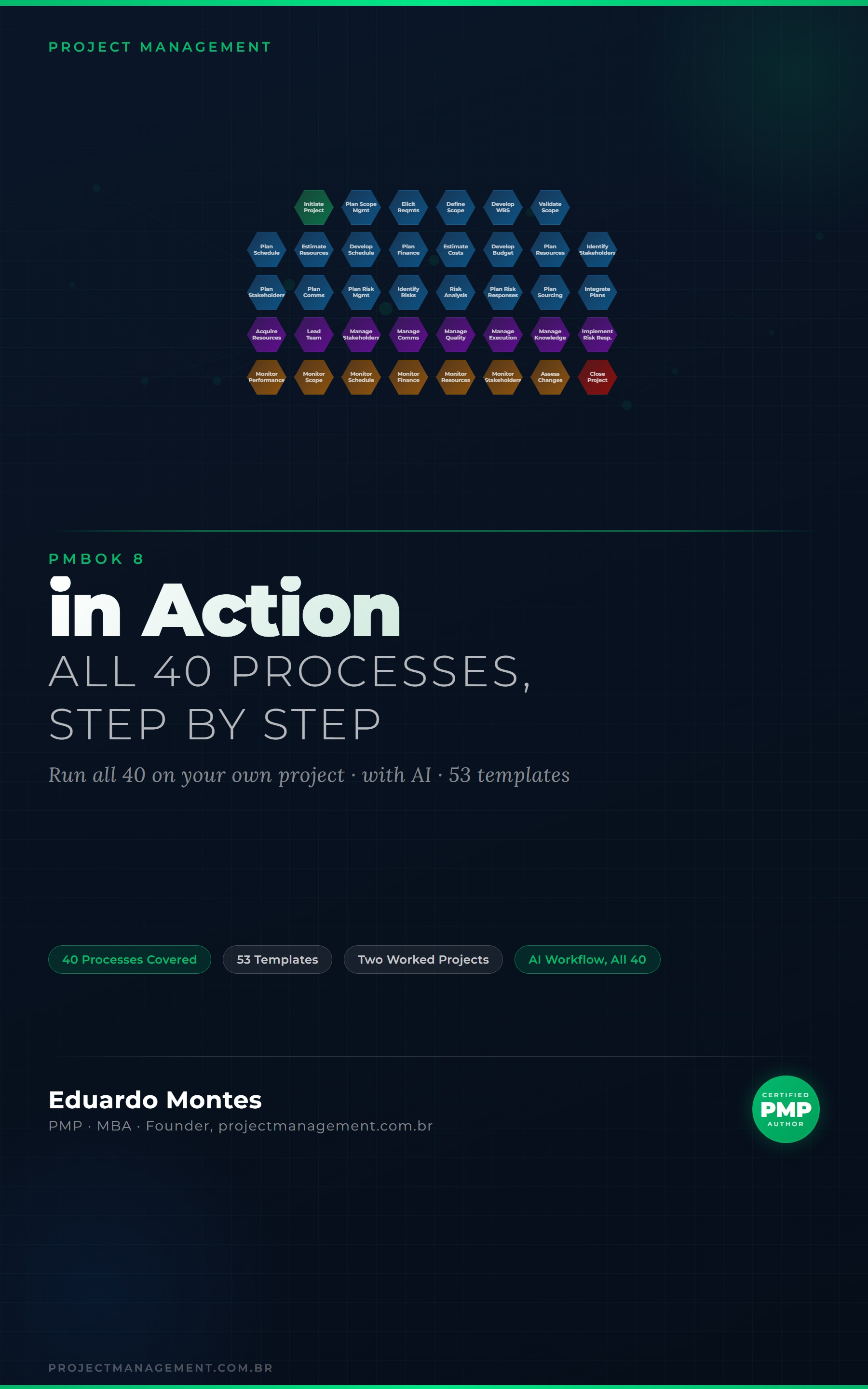
PMBOK 8 in Action
The 40 processes of the PMBOK 8 Guide applied to one real project, with the finished artefact at every step.
See the book — US$ 9.98 →
 Project Together Office